Beginner’s guide · Make & create
Draw one object twice.
Let the second version teach you.
Start in a free painting app with one dependable brush, a small canvas and a subject you can actually finish. A basic pen tablet improves control; a screen tablet changes hand–eye feel, not the need to practise shape, value and colour.
Quick answer
Use fewer tools than the software offers
Install Krita on a suitable computer, choose one opaque round brush and make a 1600 × 1200 pixel canvas. Draw a simple object from observation using separate sketch and paint layers. Save the editable Krita file as you work, then export a JPEG or PNG copy when finished. A mouse works for testing the workflow; a pressure-sensitive tablet is the first hardware purchase that materially changes drawing control.
- 01
A screenless pen tablet maps its active area to the monitor, so the first hour feels unfamiliar even when the device is working correctly.
- 02
Brush packs do not replace control of size, opacity, edge, value and colour. Learn one or two default brushes first.
- 03
Layers are useful when they separate decisions—sketch, colour, shadow or correction—not when every stroke gets its own layer.
- 04
Keep the editable working file and exported viewing copy. Flattening or exporting alone can remove layers you meant to revise.
What to expect
Digital removes some friction and introduces different friction
Undo, layers and transform tools make revision easier, but they also make endless correction possible. The useful skill is deciding what the picture needs, not discovering every menu.
Hand–eye mapping
With a pen tablet, the stylus moves on the desk while the mark appears on the monitor. A few short sessions usually help more than changing settings repeatedly.
Pressure
Pressure sensitivity can control size or opacity, but the driver and app must both recognise it. Test pressure before blaming drawing ability.
Zoom
Working permanently at extreme zoom creates detail that disappears at normal viewing size. Check the whole image often.
Colour
A display can be bright, cool or oversaturated. Begin with clear value differences and preview on another ordinary screen.
Files
Large canvases, many layers and automatic backups consume memory and storage. Name versions and save before experimenting.
Learning
Software shortcuts become automatic, but composition, proportion, light and colour remain art problems rather than equipment problems.
Core workflow
Build a small, recoverable workflow
Set up the software before the drawing
Install Krita from its official source, connect the tablet and install the manufacturer’s current driver. In Krita, create a modest RGB canvas and test a slow line from light to heavy pressure. If the width does not change, check the selected brush, tablet driver and Krita tablet settings before continuing. Avoid remapping every button on day one; pen tip, undo, brush size and canvas navigation are enough.
Separate the decisions that need revising
Make a loose sketch layer, lower its opacity and add a paint layer beneath or above it according to the chosen method. Add another layer only when it has a job: broad colour, shadow, light or a risky correction. Name important layers. Layers make edits recoverable, but an enormous stack can hide the actual picture and slow an older computer.
Judge the picture at normal size
Block the largest light and dark shapes before texture. Flip the canvas view to reveal proportion errors, zoom out until the image is near its intended display size and use a greyscale preview when colour disguises weak values. These checks train observation; they are not automatic fixes.
Save an editable original and a delivery copy
Save regularly as a .kra working file so layers remain editable. Use incremental filenames before a major change. Export a PNG for clean graphics or a high-quality JPEG for a smaller photographic-style image, then open that exported file to confirm its crop, colour and dimensions.
Useful products
A low-cost drawing surface, one art reference and a screen upgrade
The XP-Pen is the sensible first hardware route for a computer you already own. James Gurney’s book addresses colour and light decisions that apply beyond any app. The Kamvas 12 is shown as a later display-tablet option for people who know they prefer drawing directly where the mark appears; it still requires a compatible host device and cables.
XP-Pen Deco mini7 V2 Graphics Tablet
It adds the control a mouse lacks while keeping the initial spend and desk footprint modest.
James Gurney Color and Light: A Guide for the Realist Painter
The examples connect light behaviour and colour choices to pictures in any painting application.
HUION Kamvas 12 Drawing Tablet with Screen
A laminated pen display reduces the separation between pen tip and cursor for people who dislike screenless mapping.
First painting
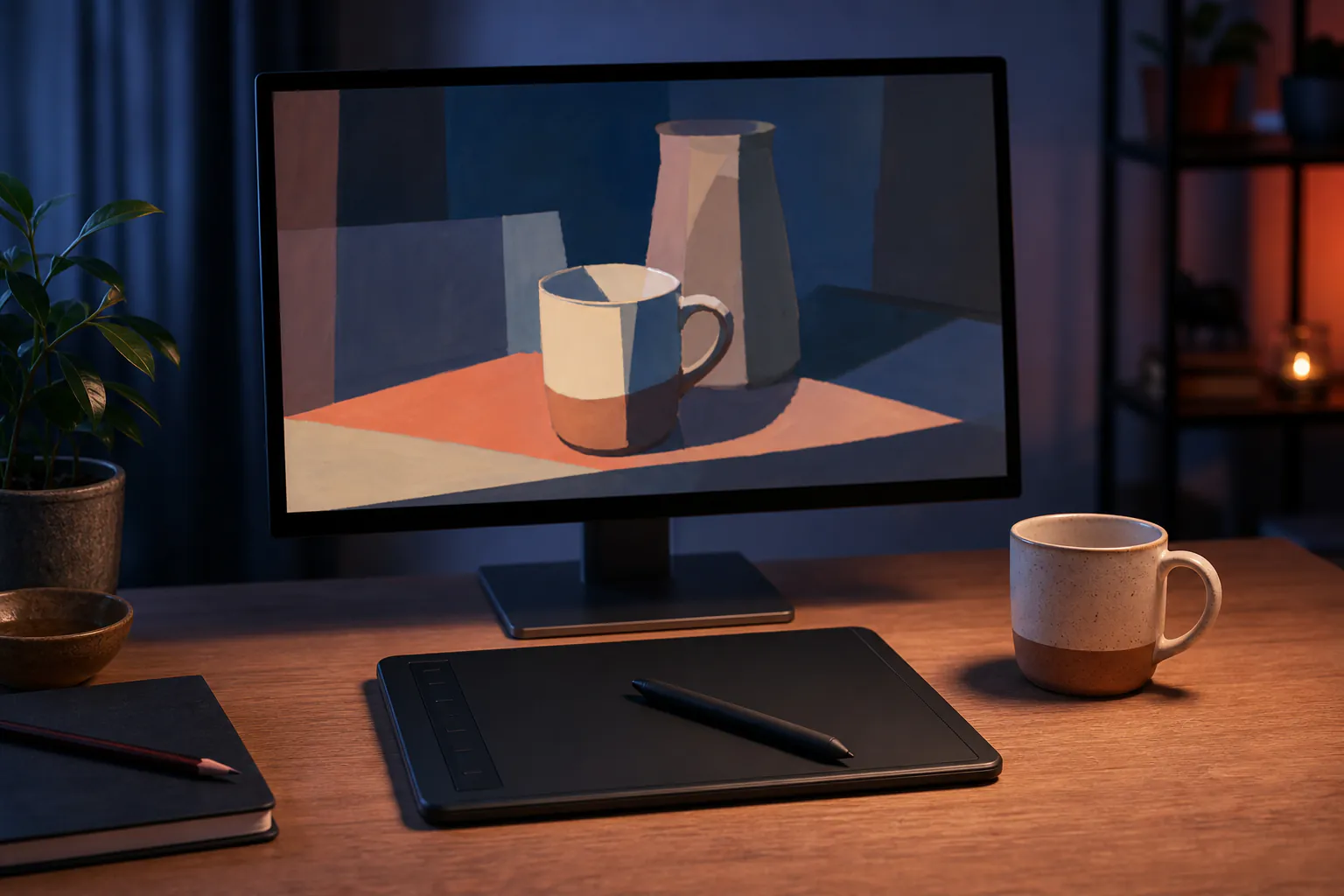
Paint one mug in three deliberate passes
Use a plain mug or similarly simple object under one lamp. The result does not need to be portfolio work; it needs to make shape, value and edge decisions visible.
- 01
Prepare the device
Test pen pressure, undo, pan and zoom on a scrap canvas before beginning the study.
- 02
Choose the crop
Place the object off-centre if useful and draw a thumbnail-sized rectangle showing the intended composition.
- 03
Sketch large angles
Mark height, width, rim and handle with straight searching lines rather than polishing an outline.
- 04
Block two values
Use one light and one dark tone to test whether the form reads without detail.
- 05
Add the middle value
Describe the turning form and cast shadow while keeping the main light–dark split clear.
- 06
Introduce restrained colour
Choose a small palette sampled by eye, not with a colour picker from a photograph.
- 07
Check the whole
Flip the view, zoom out and correct the largest distracting proportion or value error.
- 08
Save and export
Keep the layered .kra file and export a viewing copy; repeat the subject another day using fewer corrections.
What can wait
What can wait until a repeated problem identifies it
The first useful upgrades solve control, comfort or display limits that you have actually experienced.
- 01
Hundreds of brushes
A large library increases searching and inconsistency. Learn opacity, size and edge with a few defaults before adding specialist textures.
- 02
The checked display tablet
Direct-on-screen drawing feels more natural to some people, but costs more, occupies space and does not improve observation automatically.
- 03
A subscription app
Krita is capable enough to establish painting, layers and file habits. Pay only for a specific workflow or compatibility need.
- 04
A giant canvas
Print-sized files can overwhelm modest hardware. Choose dimensions for the intended output and increase them when the computer handles the work comfortably.
- 05
A perfect workstation
A stable tablet position and neutral posture matter; decorative controllers and premium stands can follow a real ergonomic need.
Upgrade path
Upgrade control before spectacle
A better setup reduces friction, but the visible improvement still comes from more deliberate studies and finished pieces.
Existing device
FreeKrita + mouse, trackpad or existing stylus
Test layers, brushes, saving and whether digital work appeals.Basic pen tablet
About £30XP-Pen Deco mini7 V2 + computer
Gain pressure-sensitive strokes and more natural hand control.Comfort and colour
About £20–£250Reference book, stand and a better-calibrated display
Improve decisions and reduce repeated posture or display problems.Pen display
About £180+Kamvas 12 or a larger checked alternative
Draw on the displayed image while accepting cables, calibration and desk-space needs.Files & comfort
Protect the work and the person making it
The main beginner risks are lost files, painful posture, unlicensed references and believing a new device will solve a drawing problem.
- Keep at least one backup outside the working device and save incremental versions before destructive edits.
- Take regular visual and movement breaks; adjust chair, screen and tablet rather than drawing through wrist, neck or eye pain.
- Use references you made, licensed resources or material whose terms permit the intended use, especially for commercial work.
- Do not trace, reproduce or train commercial work from another artist’s image merely because it is easy to copy from a screen.
- Check cable routing, driver compatibility, operating-system support and return terms before buying a display tablet.
Outside help
When feedback becomes more useful than another tutorial
A course is optional. Targeted critique can help when the same proportion, value or composition problem survives several completed studies.
Use official explanations for tools and a short project to learn the interface without buying software.
Choose assignments and specific feedback over an enormous passive video library.
Free official learning resources and representative UK online-course pricing checked 2 August 2026; tutor access and critique vary.
Sources
Where the guidance came from
Official Krita documentation establishes the software workflow; established art teaching and user reports inform the practical tablet learning curve.
-
01
Krita Manual · Basic concepts
Canvas, raster and vector images, layers, tools, colours and brush-engine fundamentals.
Open source -
02
Krita Manual · Layers and masks
Why layers separate elements and allow less destructive changes.
Open source -
03
Krita Manual · Navigation
Canvas zoom, pan, mirror, rotation and workspace controls.
Open source -
04
Ctrl+Paint · Digital painting library
Specialist exercises on digital drawing, painting, edges, values and workflow.
Open source -
05
Amazon UK · XP-Pen Deco mini7 V2 graphics tablet
Exact product page, model or ISBN, observed price and availability checked for this guide.
Open source -
06
Amazon UK · James Gurney Color and Light
Exact product page, model or ISBN, observed price and availability checked for this guide.
Open source -
07
Amazon UK · HUION Kamvas 12 pen display
Exact product page, model or ISBN, observed price and availability checked for this guide.
Open source
Guide information and links checked 2 August 2026.